Getting Started
Installation
Connect Kyew to your AI app in under 60 seconds. Once connected, your AI gains persistent memory, custom tools, and access to your services.
Claude.ai (Recommended)
Claude has built-in support for MCP connectors. No CLI, no config files — just point and click.
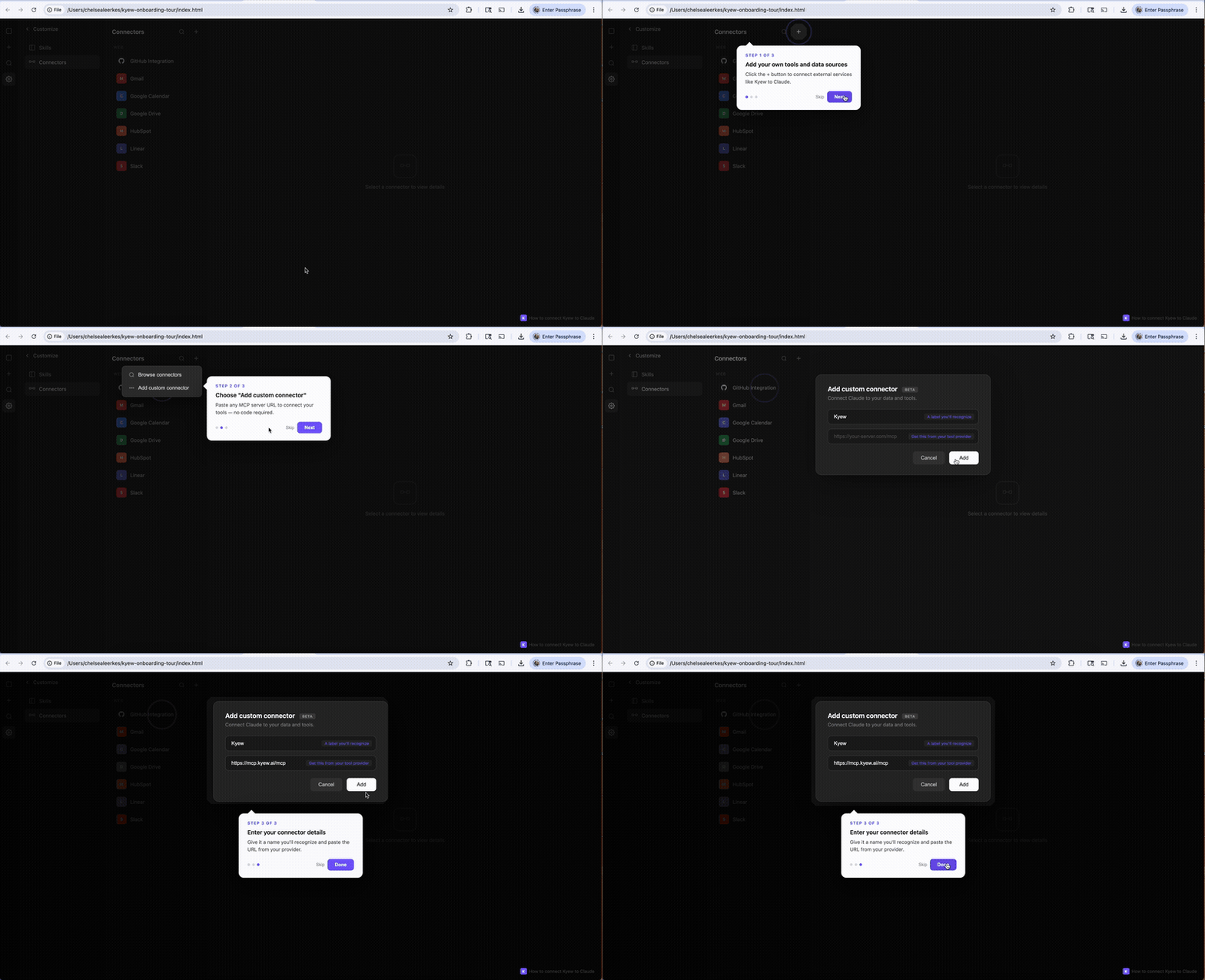
1. Click the + button
Go to Customize > Connectors, then click the + button to add a new connector.
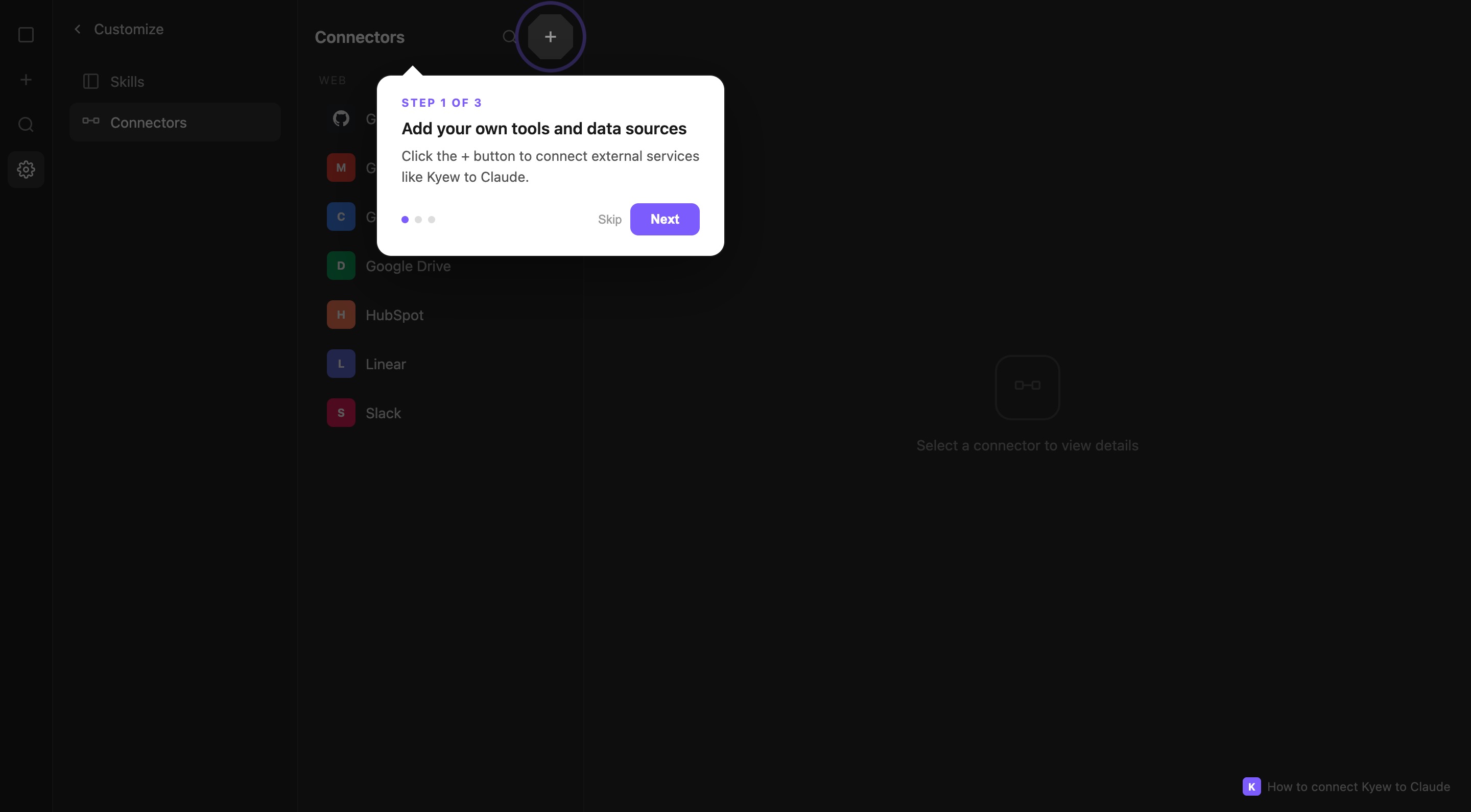
2. Choose "Add custom connector"
Select "Add custom connector" from the dropdown menu.
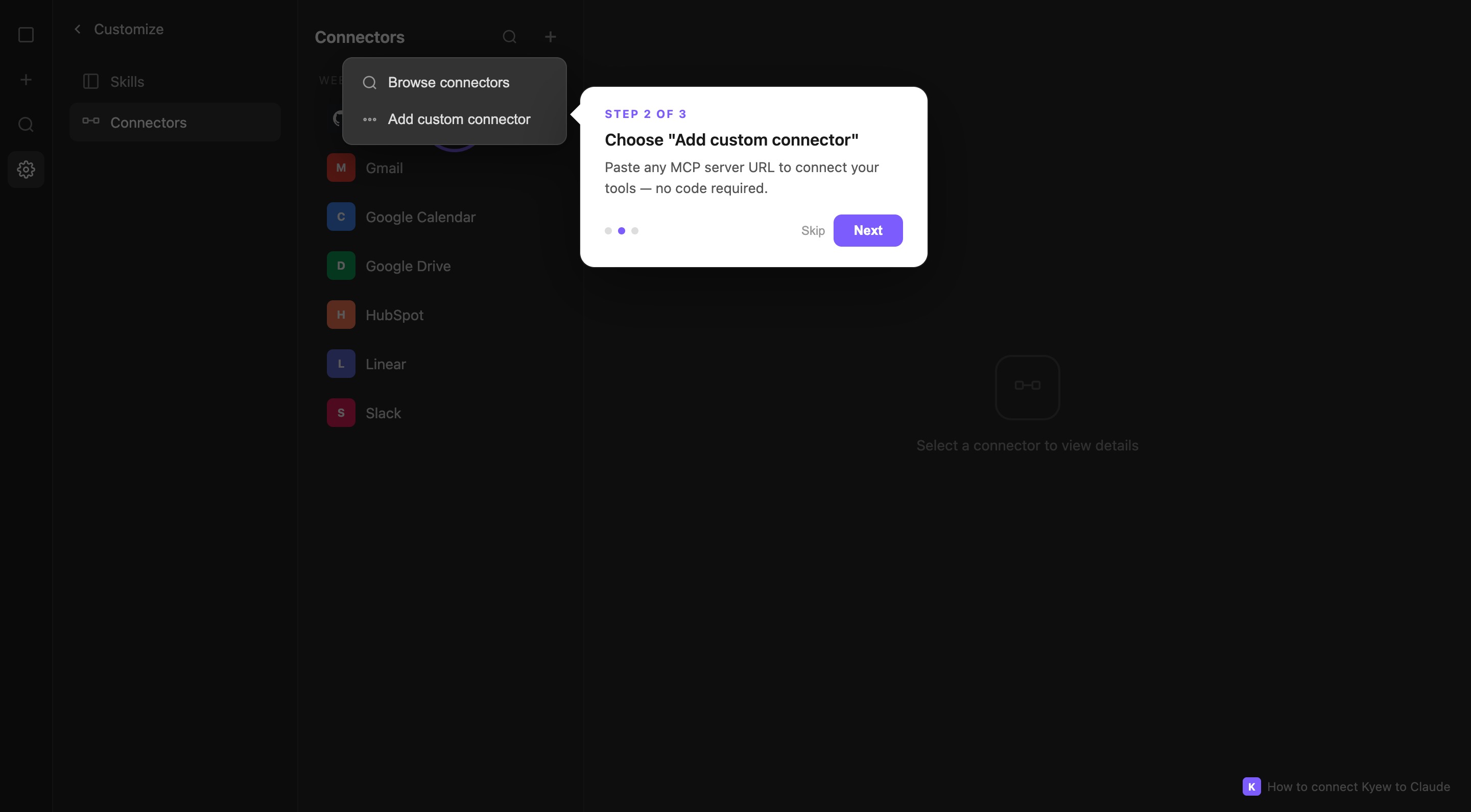
3. Enter the Kyew URL
In the dialog, enter:
- Name:
Kyew - URL:
https://mcp.kyew.ai/mcp
Then click Add.
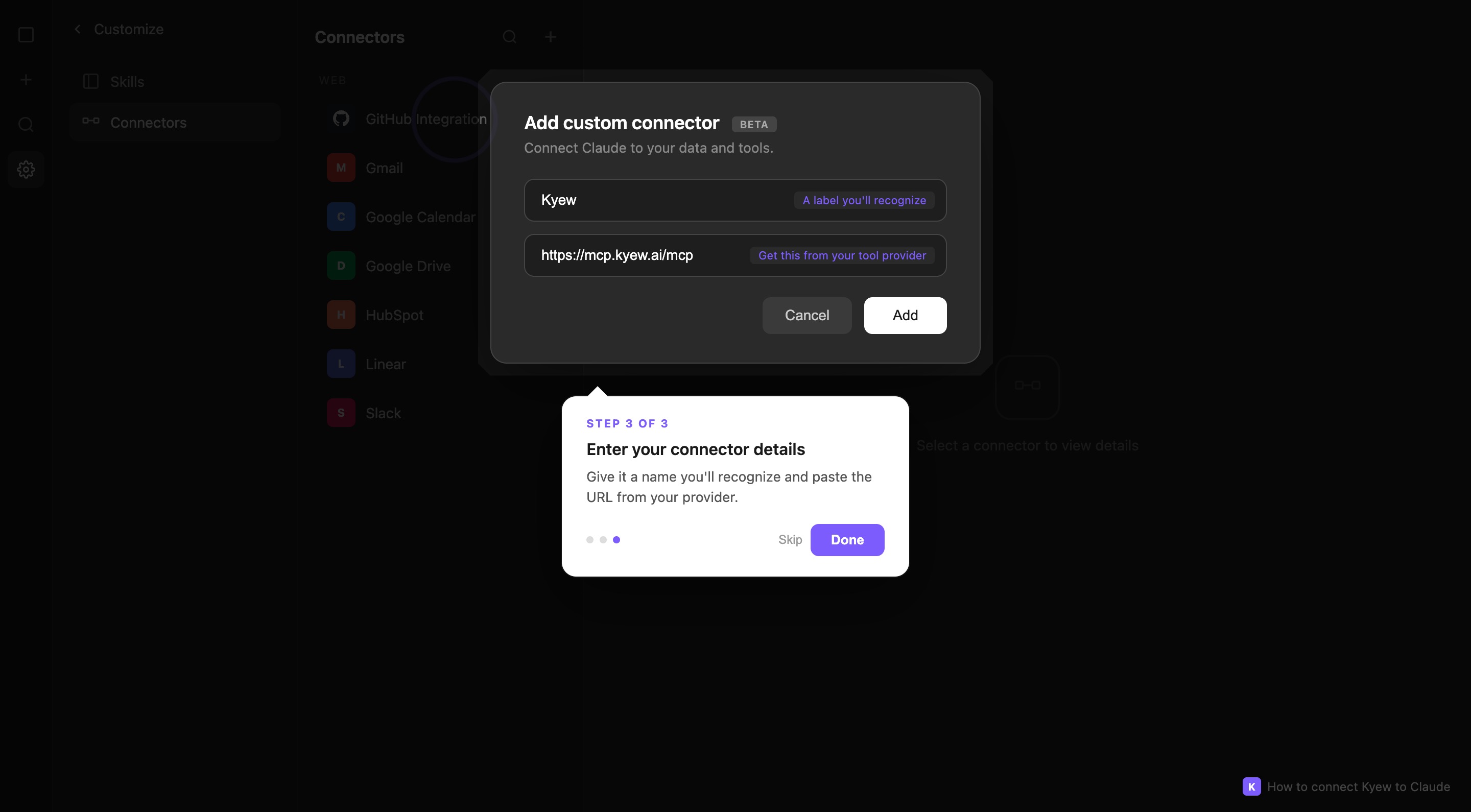
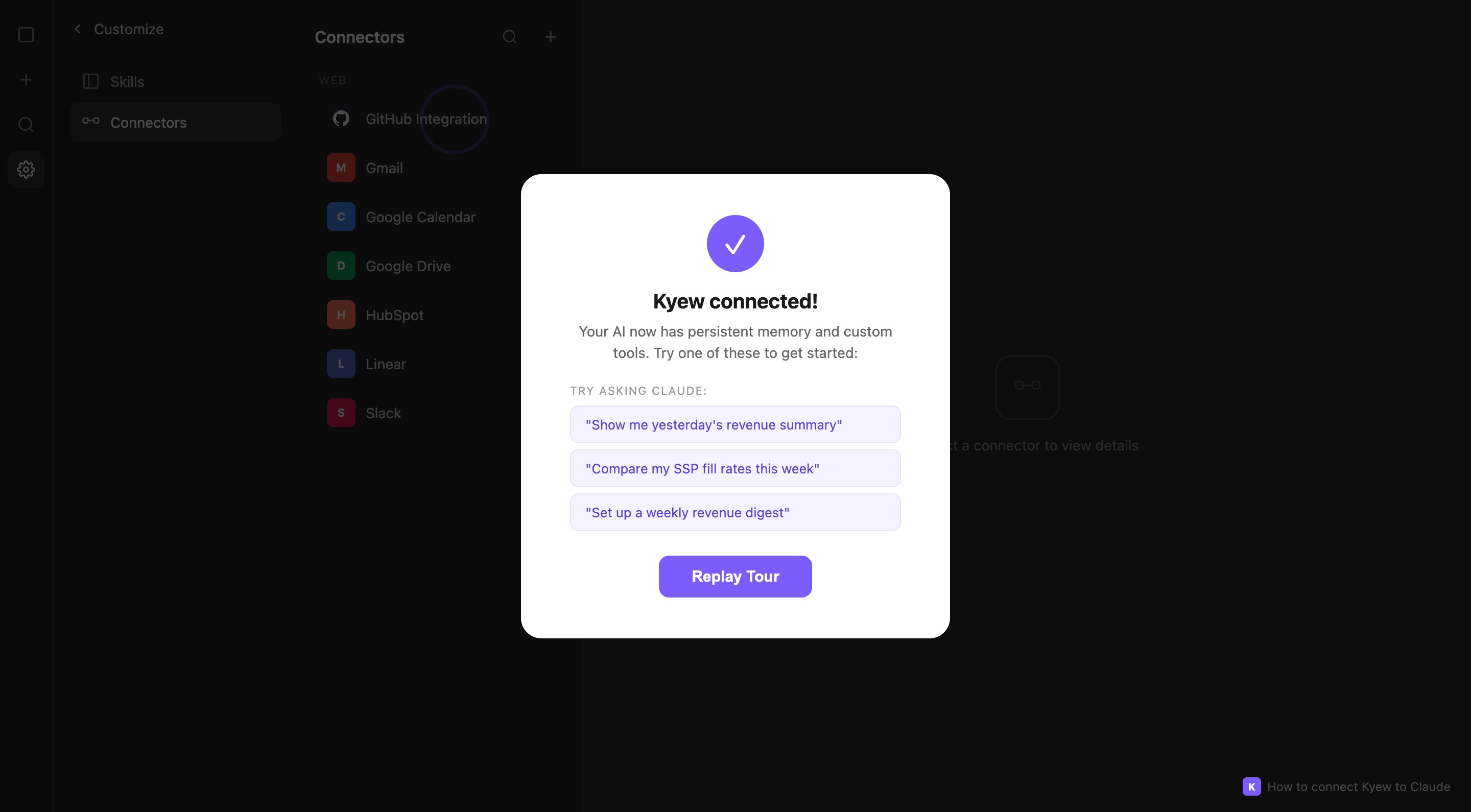
4. Connected!
Kyew is now connected. Your AI has persistent memory, custom tools, and access to your services.
Verify
Start a new conversation and ask:
What Kyew tools are available?
You should see all available tools listed. You're connected.
ChatGPT
Kyew works with ChatGPT through the OpenAI Apps SDK.
Setup
- Go to ChatGPT and open your app/GPT configuration
- Add an MCP server with URL:
https://mcp.kyew.ai/mcp - When prompted, sign in with Google
Verify
Ask ChatGPT:
What Kyew tools are available?
You should see all available tools. Your data syncs across both Claude and ChatGPT when using the same Google account.
Alternative: Claude Code CLI
If you prefer the command line, you can add Kyew with a single command:
claude mcp add kyew --transport http --scope user https://mcp.kyew.ai/mcp
When prompted, click the authentication link to sign in with Google.
Verify Connection
claude mcp list
You should see:
kyew: https://mcp.kyew.ai/mcp (HTTP) - Connected
Test It Out
claude "remember that I just connected to Kyew"
Authentication
Kyew uses Google OAuth for authentication. When you first connect:
- A browser window opens with the Google sign-in page
- Sign in with your Google account
- Grant access to Kyew
- You're redirected back to your client with access granted
User-Scoped Data
All your data is private to your Google account:
Your Google Account
  Memories: Private, encrypted
  Skills: Private, encrypted
  Tools: Private, encrypted
  Connections: Private, encrypted
Other users cannot access your data. Each Google account gets completely isolated storage.
Cross-Device and Cross-Client Sync
Same Google account = same data everywhere:
Claude Desktop:  Sign in with you@gmail.com -> All data available
Claude Code:     Sign in with you@gmail.com -> Same data synced
ChatGPT:         Sign in with you@gmail.com -> Same data synced
Requirements
- Google Account: Required for authentication
- AI App: Any app that supports MCP:
- Claude.ai (latest)
- Claude Desktop (latest)
- Claude Code CLI v1.0.0+
- ChatGPT (via OpenAI Apps SDK)
- Other MCP-compatible apps
Troubleshooting
"Authentication failed"
- Check that you're using a valid Google account
- Try clearing your browser cookies and re-authenticating
- Ensure popups are not blocked for the OAuth flow
"Connection refused"
- Check your internet connection
- Verify the server status at mcp.kyew.ai/health
- Try removing and re-adding the connector
"Tools not showing up"
- Restart your MCP client
- Verify authentication completed successfully
- For Claude Code: check with
claude mcp list
Next Steps
Once connected, try these to get started:
- Store your first memory: Ask your AI to remember something about your project
- Explore the tools: Ask "what Kyew tools are available?"
- Read the Quick Start guide: Learn the core workflow